

Introducing Amplify for Advisors Skills: Build Your AI Voice Guide in 30 Minutes
Amplify for Advisors Skill #1: Build Your AI Voice Guide

I’ve been teaching how to create your own voice guide since Issue 2 of this newsletter. How to analyze your writing, capture your patterns, and give AI the instructions it needs to sound like you instead of everyone else.
That issue gave you the prompt, and it worked pretty well. But it was still a manual process. You had to copy and paste the prompt, copy and paste writing samples, and then had to somewhat organize the output into something usable.
I built something better.
The Amplify for Advisors Voice Training Skill is a guided tool that runs inside Claude’s Cowork. You install it once, say “train on my voice,” and it walks you through the entire process conversationally. No prompts to copy and paste. No steps to remember. It asks the right questions, analyzes your writing samples, and builds your complete Voice Template automatically.
The whole thing takes about 30 minutes.
What makes this different from a generic voice analysis is that it was built specifically for financial advisors.
It maps your compliance voice, which is how you naturally handle the line between education and advice. It finds your analogy domains, the worlds you reach for when a technical explanation isn’t landing and you need to try a different angle. And it captures the personality markers that make you sound like a specific person, not a category.
The output is a voice-template.md file that you can paste into any AI prompt or project going forward. Every piece of content, every client email, every meeting prep draft will sound like you wrote it on a good day.
This is available exclusively to paid subscribers of Amplify for Advisors. Consider it a huge thank you for being here early and supporting what I’m building.
What You Need
A Claude Pro subscription ($20/month from Anthropic). If you don’t have one yet, you can sign up at claude.ai. I’ve been using Claude exclusively for 4-5 months now (even though I keep testing it against ChatGPT on a monthly basis). I’ve believe Claude is the best AI tool for writing content right now.
You will need to download Claude Desktop, which lives on your local computer, but that’s the only other “tool” you’ll need (and it doesn’t cost anything extra).
Note: I realize there is a high percentage of advisors using ChatGPT instead of Claude because of name recognition, and unfortunately ChatGPT doesn’t have a comparable feature, yet. So this currently only works with Claude. If you've been curious about trying Claude, this is a great reason to start.
Step 1: Download and Install Claude Desktop
The Voice Training Skill will live inside the Claude Desktop app. You’ll access it under the Cowork tab once you’re inside the app.
Here’s how to get set up:
Download Claude Desktop at claude.com/download (available for Mac and Windows). Install and open the app, then sign in with your Claude account.
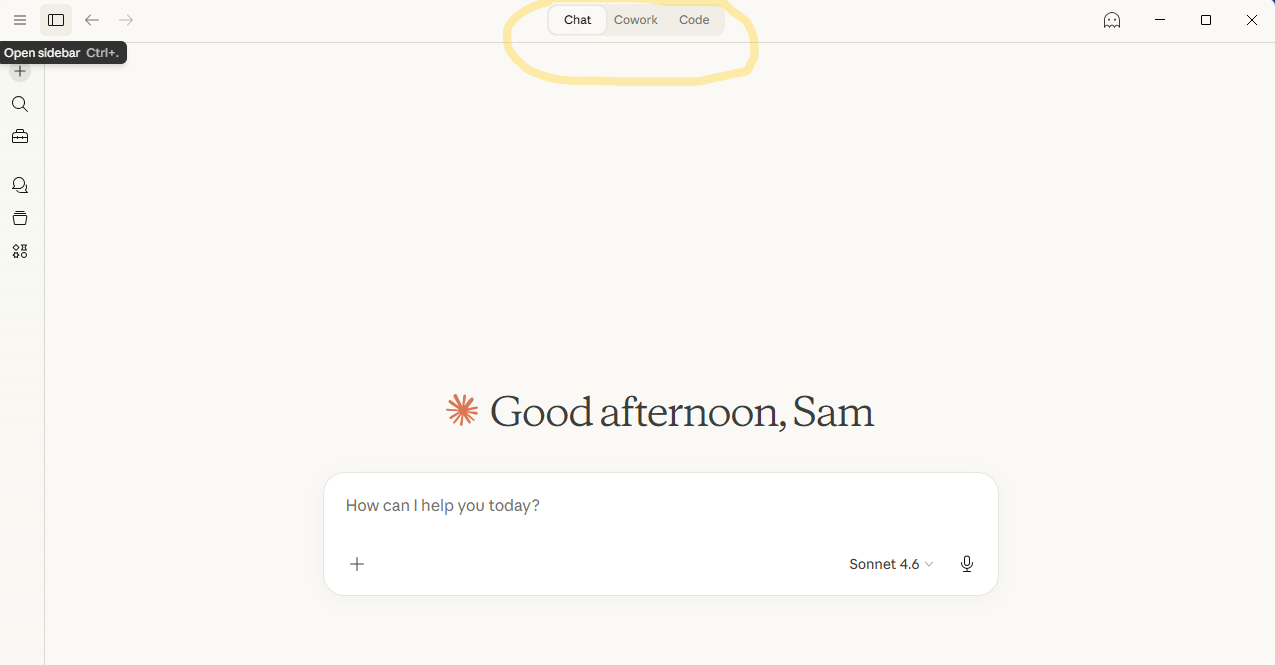
Click the Cowork tab at the top center of the screen to confirm it’s working. You’ll see a mode selector between “Chat” and the “Cowork” tab. That’s your new home base (circled in yellow).
Note: Claude Desktop must stay open while Cowork is running a task. If you close the app or your computer goes to sleep, the session ends. Just something to know going in.
Step 2: Install the Voice Training Skill
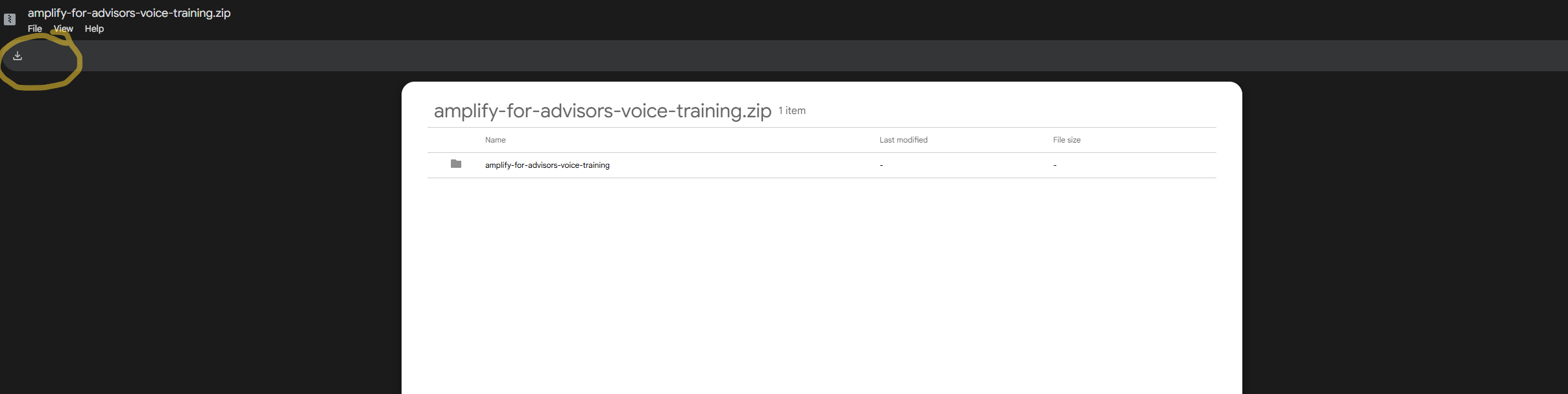
Download the zip file here by pressing the download icon in the upper left hand corner (circled in yellow). [ZIP FOLDER DOWNLOAD CAN BE FOUND AT THE BOTTOM OF THIS ARTICLE]
Important: do not unzip the file. Some Mac systems automatically unzip folders when you download them. If that happens on your machine, the file won’t upload properly into Cowork. Just compress the folder again (right-click, Compress) and use that new zip file instead.
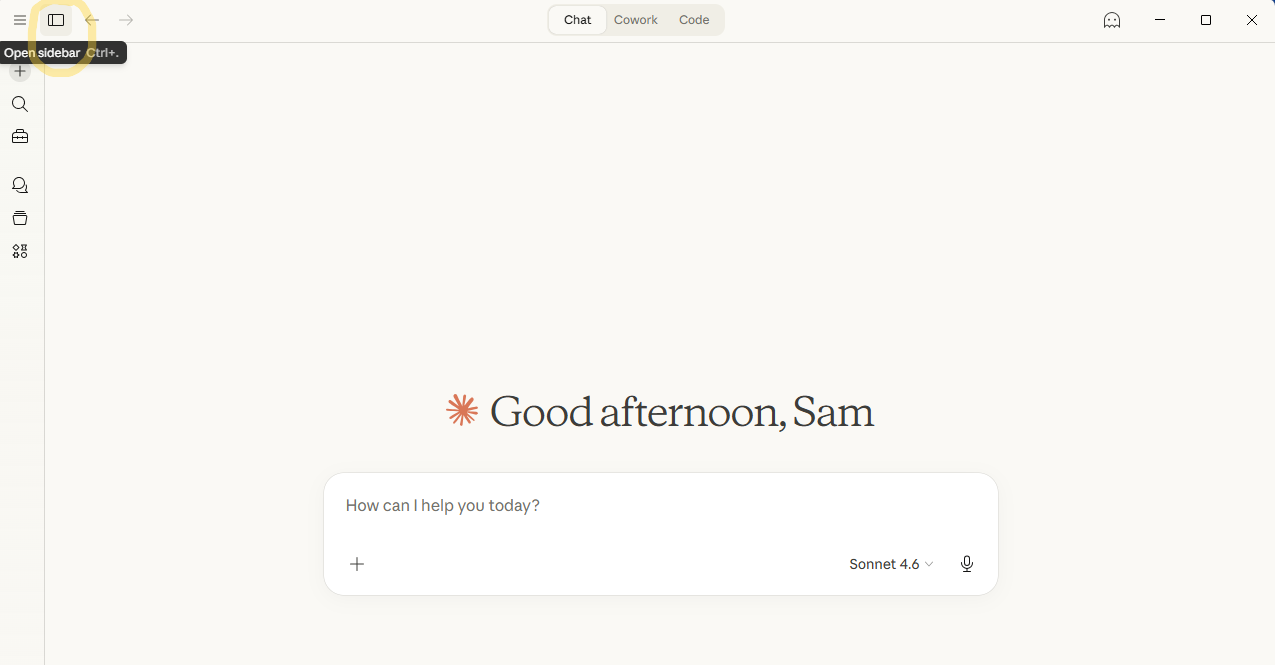
In the Claude Desktop app, if you don’t see a sidebar menu on the left, click the sidebar icon in the top left corner right next to the three horizontal lines (circled in yellow).
In the left sidebar, click Customize. You’ll see a section called Personal plugins with a + button next to it. Click that + button, then select Upload plugin. Upload the zip file and it will install in a few seconds.
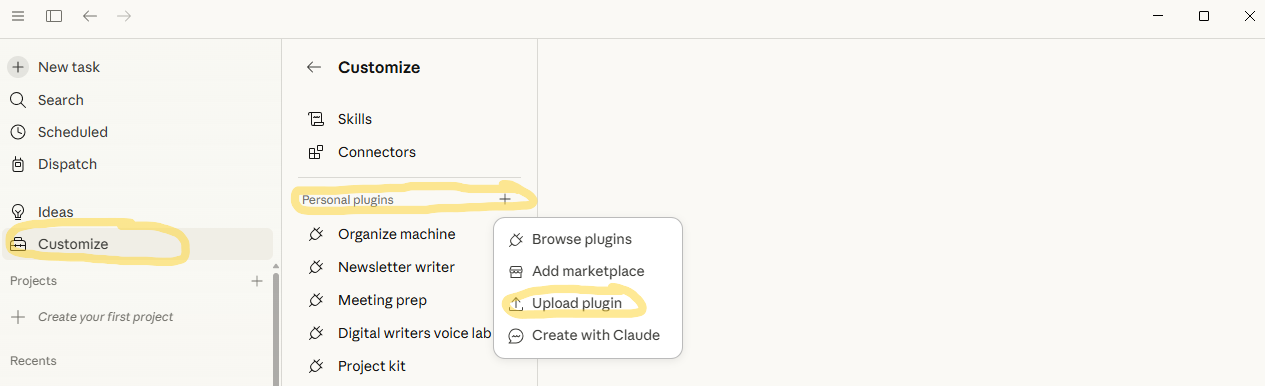
Once it’s installed, you’re ready to go.
How to Use It
Before you start, Cowork needs to know which folder on your computer to work from. You’ll see a “Work in a folder” or maybe a “Work in a project” option at the bottom of the Cowork screen.
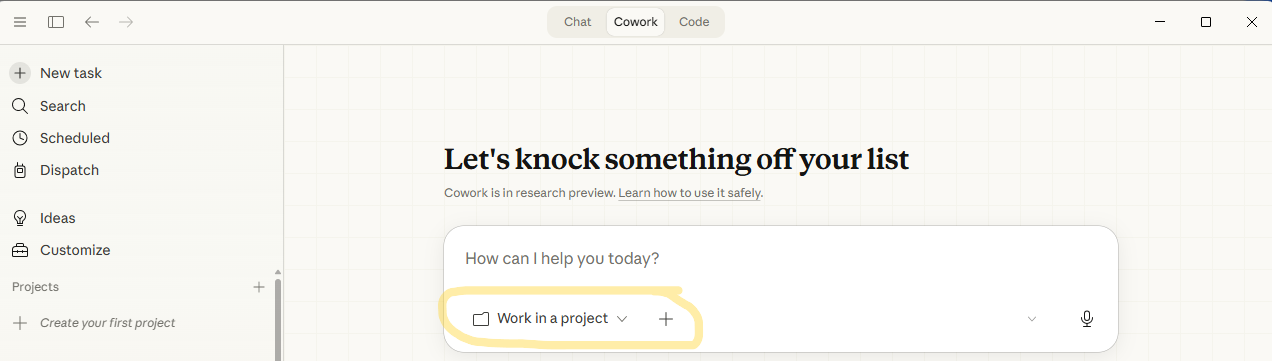
Click “Choose a different Folder”
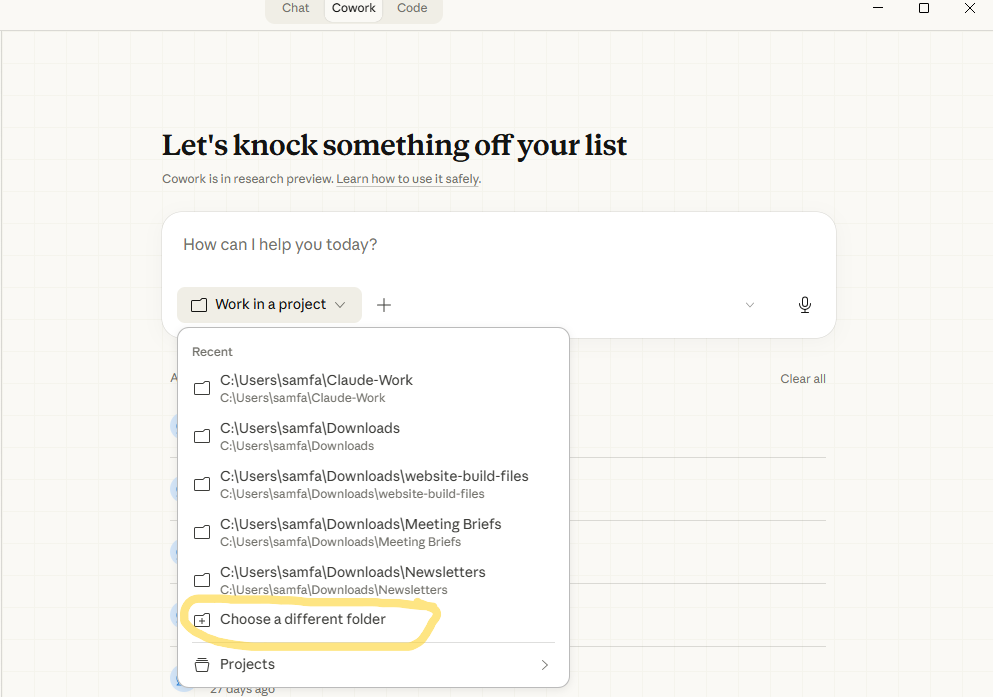
Then point it to your Downloads folder.
This is a good starting point because there’s rarely any sensitive data in there, and it’s where the Skill will save your completed voice-template.md file when it’s done.
Next, set the model to Sonnet 4.6. Opus is the most capable model, but Sonnet does nearly as well as Opus, but uses a fraction of the tokens for the same amount of tasks. I use Opus for deep thinking projects and Sonnet for everything else (including writing).
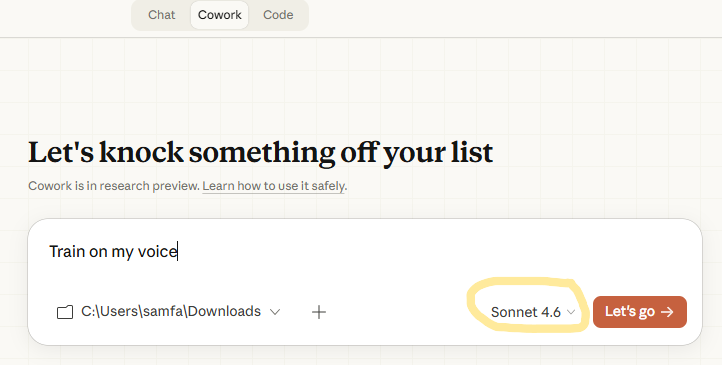
Once your folder and model are set, type “train on my voice” in the chat box and press Let’s go.
One thing you'll notice right away: Cowork is slower than Chat. Noticeably slower. That's normal and expected. Chat processes your request in a single pass and gives you the response. Cowork is doing more behind the scenes. It's reading files from your folder, checking references, and running through the Skill's instructions before it responds. All of that takes longer, but it's also why the output is more tailored than what you'd get from a regular chat prompt. Be patient and give it time to work.
The Skill will ask you to paste 5-10 writing samples. Use a mix of things you’ve written: LinkedIn posts, client emails, newsletter sections, meeting follow-up notes, even text messages if you have them. The more variety, the better the result. If you only have 3 or 4 samples, that’s fine. You can always add more later to strengthen the template.
From there, it guides you through everything. It will analyze your sentence patterns, map your vocabulary, identify your compliance voice, find your analogy domains, and capture your personality markers. At each step it shows you what it found and asks if it feels accurate. You adjust as needed.
At the end, it runs a live test. It asks you for a topic, generates a short LinkedIn post using your new Voice Template, and asks “does this sound like you?”
Be brutally honest with the results. Keep telling it what you like and don’t like. Keep telling it words or phrases you would never use. Keep refining until the output sounds like you.
The whole process should take about 20-30 minutes. When it’s done, your Voice Template is saved in your downloads folder as an .md file and is ready to use in future chats/projects.
What to Do With Your Voice Template
This will be a MUCH more thorough voice template than what you created with Issue #2 of Amplify for Advisors. Paste this voice template at the top of any AI prompt or project when you’re creating content, writing emails, or prepping for meetings. The Voice Template tells AI how you communicate so the output matches your style automatically.
If you’re using Cowork regularly, I have a folder structure that works well. I created a folder on my computer called Claude-Work. I have a few folders inside of Claude-Work including About Me, Outputs, Projects, and Templates. I saved my voice-template.md file in my About Me folder. I usually only point Cowork to the Claude-Work folder (now that I’ve graduated away from the downloads folder). Any Skill or project that reads from that folder in the future will pick up your voice automatically.
Every future Amplify for Advisors Skill I build will read from this same Voice Template. The content tools, the client communication tools, the meeting prep tools. This is the foundation file that makes everything else work.
A Quick Note
This is the first Amplify for Advisors Skill. There are more coming (no definite number but I’m thinking 1 skill per month). Each one builds on the Voice Template you create here, so spending 30 minutes on this now saves you significant time on everything that follows.
If you run into any issues during setup or the training process, reply to this email or DM me on LinkedIn, and I’ll help you through it as best I can.
Amplify your voice!

Sam Farrington, CFP®
Creator of Amplify for Advisors
P.S. Thank you for being a paid subscriber. I don't take it lightly that you're here early and supporting what I'm building. More Skills are coming, and I want to make sure I'm building the right ones. If there's a task you find yourself doing over and over in your practice, something where you could describe the situation once and get back a finished draft without needing weeks of back-and-forth with Claude to get a good result, I'd love to hear about it. Reply and tell me what it is. Your answer might become the next Skill. Download can be found below.
Keep reading with a 7-day free trial
Subscribe to Amplify for Advisors to keep reading this post and get 7 days of free access to the full post archives.