

Amplify for Advisors Skill #2: Get a Week's Worth of Content From One Piece You Already Wrote
Amplify for Advisors Skill #2: Content Recycler

If you’ve been publishing content for more than a few months (and hopefully years), you’re probably sitting on more good material than you realize.
Go back and read something you wrote three or four months ago. A newsletter you sent, a LinkedIn post that got some traction, an article on your website. There are ideas in there you forgot about. Stories you told once to one audience that a completely different audience never saw. Frameworks you built for a 1,000-word article that would work just as well as a 150-word LinkedIn post.
Most advisors treat content like it has a single life. You write it, you publish it, you move on to the next blank page. But the advisors who are building real visibility right now aren’t necessarily creating more content. They’re getting more out of what they’ve already created.
You’ve already done the hard part. You already have good content with your voice in it. The question isn’t “what should I write next?” It’s “what have I already written that deserves a second life?”
That’s what the Content Recycler does.
What the Content Recycler Skill Does
The Amplify for Advisors Content Recycler is a guided tool that runs inside Claude’s Cowork. You paste in something you’ve already written, tell it which platforms you want to reach, and it pulls out the strongest elements and rebuilds them into platform-ready content.
It doesn’t paraphrase your original piece. It doesn’t just shorten it. It reads the source material, identifies seven different types of extractable elements (core insights, stories, quotable paragraphs, frameworks, data points, actionable takeaways, and questions), and then builds new standalone pieces from those elements for each platform you choose.
Every piece it creates reads your Voice Template, so the output sounds like you, not like a generic repurposing tool. And every piece includes the compliance guardrails that financial advisors need baked in from the start.
Here’s what makes this different from copying your newsletter into ChatGPT and asking it to “make this into a LinkedIn post.”
The Skill knows the difference between LinkedIn, Substack Notes, a client email, Facebook, and X. It formats differently for each one. It adjusts length, tone, and structure based on what actually works on each platform. And when your audiences overlap (which they likely do if you’re on both LinkedIn and Substack), it pulls different angles from the same source so you’re not saying the same thing twice to the same people.
One piece of source content becomes five or six new pieces across multiple platforms. All in your voice. All compliance-conscious. All ready to review and post.
What You Can Feed It
The Skill works with anything you’ve already written. Newsletter issues, LinkedIn posts, authority articles from your website, blog posts, even a well-written client email that has broader lessons in it.
The source content just needs to be long enough to have multiple ideas inside it. A 200-word LinkedIn post might produce two or three new pieces. A 1,000-word newsletter issue can produce six or more.
You paste it in, tell the Skill which platforms you want content for, and it handles the rest.
How It Connects to Your Voice Template
If you built your Voice Template using Skill #1, the Content Recycler reads it automatically. Your vocabulary, your analogy domains, your compliance voice, your personality markers. All of it carries through into every piece the Skill produces.
If you haven’t built your Voice Template yet, the Skill will still work, but the output won’t sound as specifically like you. I’d recommend going back to Skill #1 first. Everything builds from that foundation.
Setup Instructions
The Content Recycler installs the same way as the Voice Training Skill. If you’ve done this before, it takes about two minutes.
If you already have Claude Desktop and Cowork set up from Skill #1, skip to the install steps below.
If this is your first Skill:
Download Claude Desktop at claude.ai/download (available for Mac and Windows). Install and open the app, then sign in with your Claude account. Click the Cowork tab at the top center of the screen to confirm it’s working. You’ll see a mode selector between “Chat” and the “Cowork” tab. That’s your new home base.
Note: Claude Desktop must stay open while Cowork is running a task. If you close the app or your computer goes to sleep, the session ends.
Installing the Content Recycler Skill:
If you don’t see the sidebar menu on the left, click the sidebar icon at the top left (right next to the three horizontal lines).
In the left sidebar menu, click Customize.
Hit the + button next to Personal Plugins.
Press Upload Plugin.
Upload the zip folder you downloaded below.
That’s it. The Skill will appear in your Cowork sidebar under Personal Plugins.
Important for Mac users: When you download the zip file, Mac sometimes auto-extracts it into a folder. If that happens, you’ll see a folder instead of a .zip file in your Downloads. You’ll need to re-compress it: right-click the folder, select “Compress,” and upload the new .zip file that creates.
Note: Anthropic is constantly updating their user interface and features. I guarantee by the time you watch this video, something will have changed. I’m confident you can figure out the slight differences between new and old versions of cowork. I believe in you!
How to Use It
Switch to the Cowork tab.
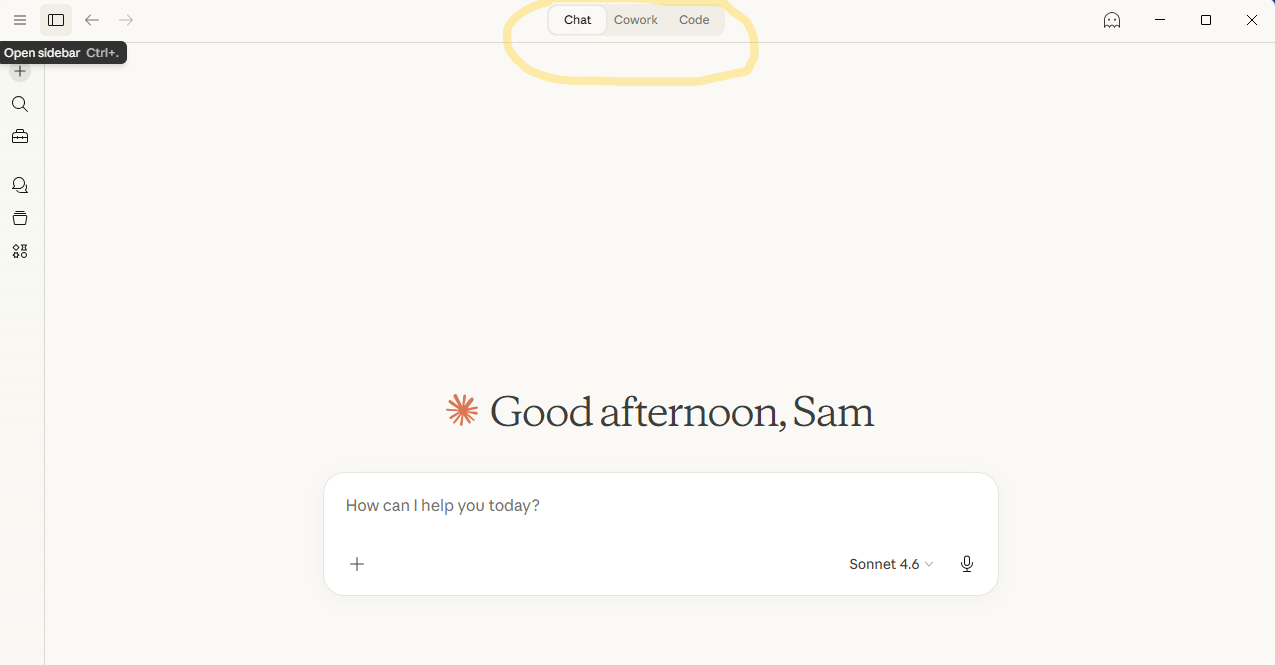
Before you start, Cowork needs to know which folder on your computer to work from. You’ll see a “Work in a folder” or maybe a “Work in a project” option at the bottom of the Cowork screen.
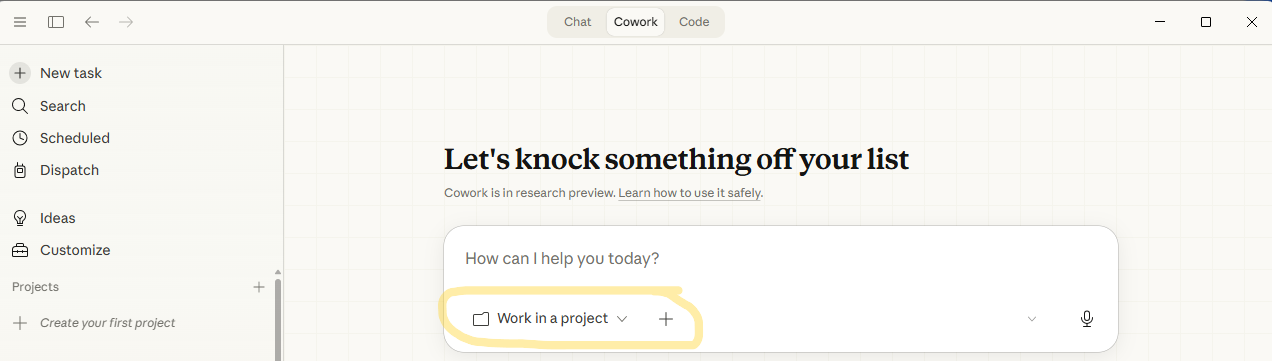
Click “Choose a different Folder”
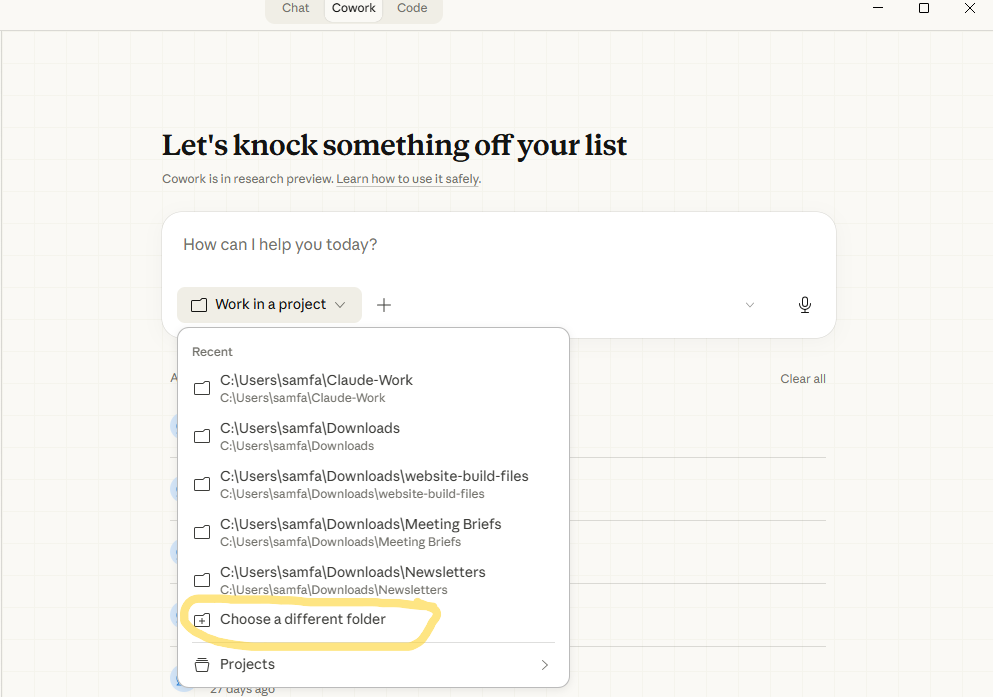
Then point it to your Claude-Work folder or Downloads folder or Your Advisory Firm Project.
Wherever Cowork is pointed needs to have your saved your completed voice-template.md file from the first skill in the same folder.
Next, set the model to Sonnet 4.6. Opus is the most capable model, but Sonnet does nearly as well as Opus, but uses a fraction of the tokens for the same amount of tasks. I use Opus for deep thinking projects and Sonnet for everything else (including writing).
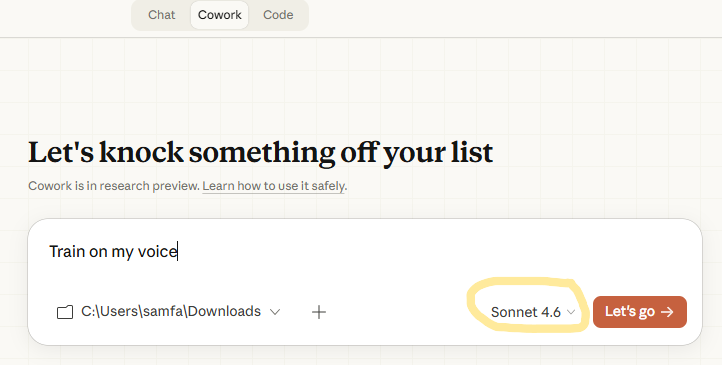
Then just tell it what you want to recycle. Something like: “Recycle this article” and paste your source content. Or: “Turn this newsletter into content for LinkedIn, Facebook, and a client email.”
The Skill will ask which platforms you want if you don’t specify. It will show you everything it creates before saving, so you can review and request changes. When you approve the output, it saves a single markdown file with all the pieces organized by platform.
What to Do With the Output
Review each piece before posting. The Skill gets you 90% of the way there, but you know your audience better than any tool does. Read through, adjust anything that doesn’t feel right, and post.
The saved markdown file becomes your content bank. Every time you publish something new, run it through the Recycler and you’ve got a week’s worth of content across multiple platforms from a single source.
A Quick Note
This is the second Amplify for Advisors Skill. If you used the Voice Training Skill, the Content Recycler already knows how you write. Every future Skill I build connects back to that same Voice Template foundation.
If you run into any issues during setup or while using the Skill, reply to this email and I’ll help you through it.
Write once. Reach everywhere. Sound like yourself the whole time.

Sam Farrington, CFP®
Creator of Amplify for Advisors
DOWNLOAD: Content Recycler Skill Zip File
Keep reading with a 7-day free trial
Subscribe to Amplify for Advisors to keep reading this post and get 7 days of free access to the full post archives.